How to Diagnose and Fix DNS, Proxy, Firewall & External Access Issues
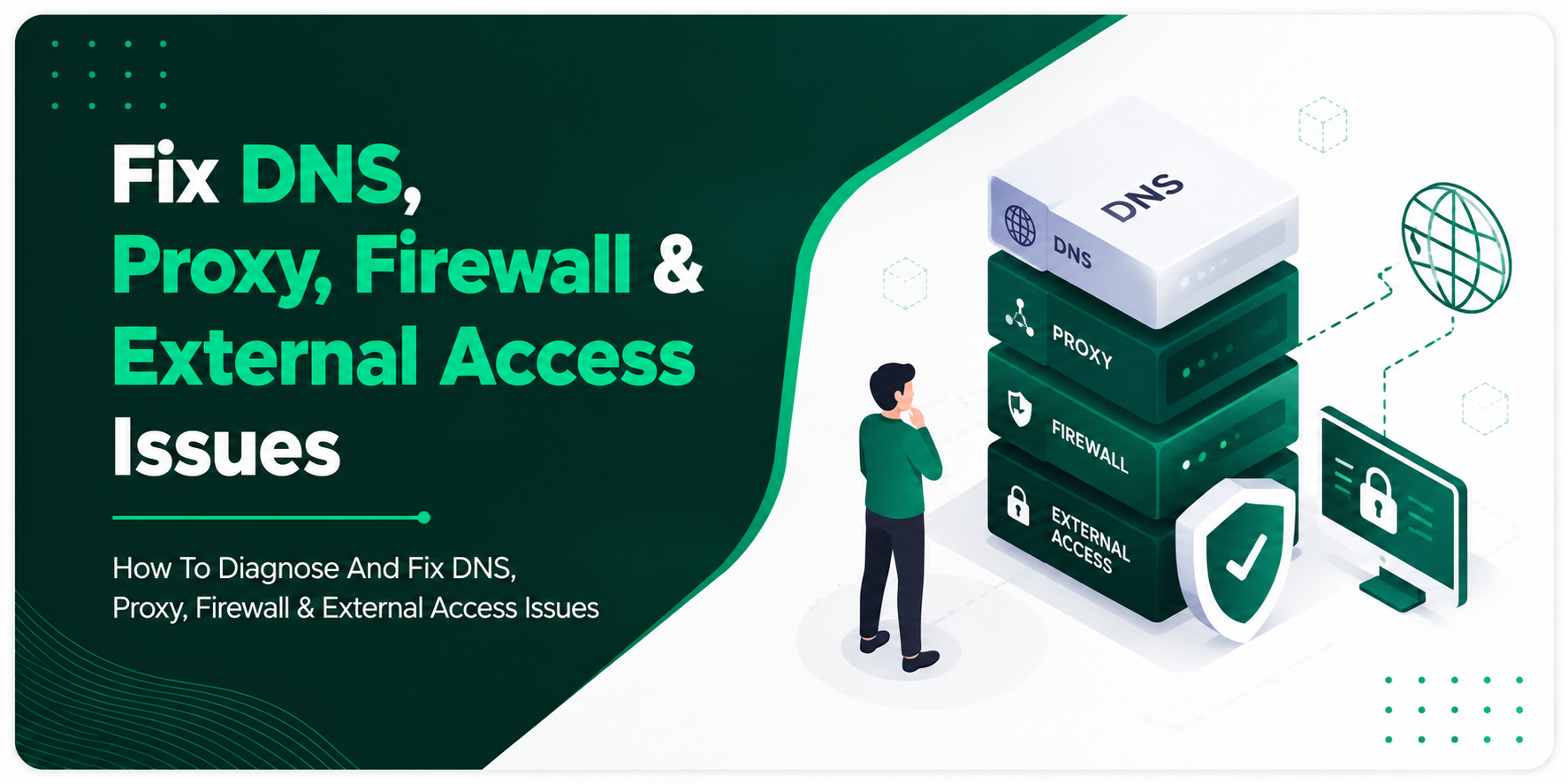
Struggling to access your website or server? Learn how to troubleshoot DNS errors, proxy misconfigurations, firewall blocks, and external access failures step by step. Target Keyword: fix DNS proxy firewall external access issues
“I can’t access my website.” “The server won’t respond.” “It works on my network but not anywhere else.” These are some of the most common support requests in web hosting — and almost always, the root cause traces back to one of four places: DNS, a proxy, a firewall, or external access configuration.
The tricky part is that all four can produce nearly identical symptoms. A blank browser tab or a timeout error looks the same whether the problem is a bad DNS record, an overzealous firewall rule, or a misconfigured proxy. This guide breaks down how to tell them apart and fix each one.
Start With the Right Question: Where Is the Failure Happening?
Before touching any settings, narrow down where the connection is actually breaking:
- Can you reach the site from a different network (mobile data instead of Wi-Fi)?
- Can you reach it from an online tool like a “check website up” service?
- Does the domain resolve at all, or does the browser fail before even connecting?
The answers here point you toward DNS, network-level blocking, or server-side configuration — which changes everything about how you troubleshoot from here.
1. DNS Issues
DNS translates your domain name into an IP address. When DNS is broken, browsers can’t even find your server, let alone connect to it.
Common signs:
- “This site can’t be reached” or “DNS_PROBE_FINISHED” errors
- The site works by IP address but not by domain
- It resolves for you but not for visitors elsewhere
How to fix it:
- Verify your A, CNAME, and MX records point to the correct, current server IP.
- Check for typos in the DNS zone — a single wrong character breaks resolution entirely.
- Remember DNS changes propagate gradually; give it up to 24–48 hours before assuming something is wrong.
- Use a DNS lookup tool to compare what different regions see — inconsistent results usually mean propagation is still in progress, not a permanent failure.
- If you recently changed nameservers, confirm the change was saved at the registrar, not just the hosting panel.
2. Proxy Issues
A proxy sits between the visitor (or your server) and the destination, and a misconfigured one can silently block or redirect traffic without an obvious error message.
Common signs:
- Some users can access the site, others can’t, based on their network
- Requests seem to disappear with no clear error
- SSL/HTTPS works inconsistently across devices
How to fix it:
- If you’re using a reverse proxy or CDN (like a caching layer in front of your server), confirm it’s forwarding the correct headers and origin IP.
- Check for conflicting proxy settings on the client side — corporate networks and some VPNs route traffic through proxies that can block unfamiliar domains.
- Review proxy logs specifically, separate from your main server logs, since the failure often happens before the request ever reaches your application.
- Temporarily bypass the proxy (where safely possible) to confirm whether it’s the actual source of the problem.
3. Firewall Issues
Firewalls are supposed to block malicious traffic — but an overly strict rule can block legitimate visitors or services just as easily.
Common signs:
- Connection timeouts rather than clear “blocked” messages
- A specific port or service (email, FTP, a custom app) fails while the main website works fine
- Access works internally but fails from outside the network
How to fix it:
- Confirm the ports your services actually need (80/443 for web, 21/22 for FTP/SSH, etc.) are open in both the server firewall and any network-level firewall.
- Check IP allow/deny lists — a rule meant to block one bad actor can accidentally catch a whole IP range.
- Review recent firewall rule changes first; most sudden access issues trace back to something changed in the last few days.
- If using a Web Application Firewall (WAF), check its rule logs — WAFs sometimes flag legitimate traffic as suspicious, especially after a plugin or CMS update changes request patterns.
4. External Access Issues
Sometimes DNS, proxy, and firewall are all fine, but the server itself isn’t configured to accept connections from outside its own network.
Common signs:
- Everything works over a local network or VPN but not from the public internet
- Remote access tools (SSH, RDP, database connections) fail specifically from external IPs
- The service is running, but “external” tests report it as unreachable
How to fix it:
- Confirm the service is actually bound to listen on the correct network interface (not just localhost/127.0.0.1).
- Check that your router or hosting provider’s network hasn’t restricted the port to internal traffic only.
- Verify port forwarding is correctly configured if the server sits behind NAT.
- Test with an external port-checking tool to confirm the port is genuinely reachable from outside, not just from your own network.
A Simple Troubleshooting Order
When you’re not sure where to start, work through these in order — each step rules out one layer:
- Does the domain resolve? → Rule out DNS first.
- Does the IP address work directly? → If yes, DNS or proxy is the likely culprit; if no, move to firewall/server.
- Does it work from inside the network but not outside? → Point to firewall or external access configuration.
- Is behavior inconsistent across networks or devices? → Point to proxy or CDN configuration.
Why This Gets Easier With the Right Hosting Setup
A lot of this troubleshooting exists because DNS, firewall rules, and network access are scattered across different tools and dashboards. The fewer places you have to check, the faster you can isolate the real problem.
This is one of the reasons a properly configured hosting environment matters as much as the troubleshooting steps themselves. Prime Technologies hosting plans include centralized DNS management, built-in firewall protection, and network monitoring in a single dashboard — so when something does go wrong, you’re checking one place instead of five.
Quick Reference Checklist
- [ ] Domain resolves correctly and DNS records point to the right IP
- [ ] No conflicting or outdated proxy/CDN configuration
- [ ] Required ports are open on both server and network firewalls
- [ ] Service is bound to accept external, not just local, connections
- [ ] Recent configuration changes reviewed as the first suspect
Frequently Asked Questions
Why does my site work on one network but not another? This almost always points to a proxy, DNS caching, or a firewall rule scoped to specific IP ranges rather than a server-wide outage.
How long should I wait after changing DNS before assuming it’s broken? Give DNS changes up to 24–48 hours to propagate fully before troubleshooting further, since partial propagation can look like a failure when it isn’t.
Is a firewall issue or a DNS issue more common? DNS issues are more common right after domain or hosting changes, while firewall issues are more common after a security update, new WAF rule, or recent server configuration change.