12 WordPress Mistakes New Site Owners Should Avoid
WordPress powers a huge share of the web because it’s approachable for beginners — but “approachable” doesn’t mean “mistake-proof.” A handful of early missteps around security, backups, plugins, and basic settings can quietly cost you traffic, rankings, or even your entire site.
This guide walks through the most common errors first-time WordPress users make, and how to sidestep each one.
Table of Contents
- Botching the Initial Install
- Ignoring Permalink Settings
- Skipping Backups
- Picking the Wrong Theme
- Plugin Overload
- Treating Security as an Afterthought
- Building Live Instead of in Private
- Falling Behind on Updates
- Uploading Oversized Images
- Leaving the Door Open to Spam
- Never Checking Site Perf
1. Botching the Initial Install
Most hosts now offer one-click WordPress installers, which makes setup fast — but a couple of details still trip people up.
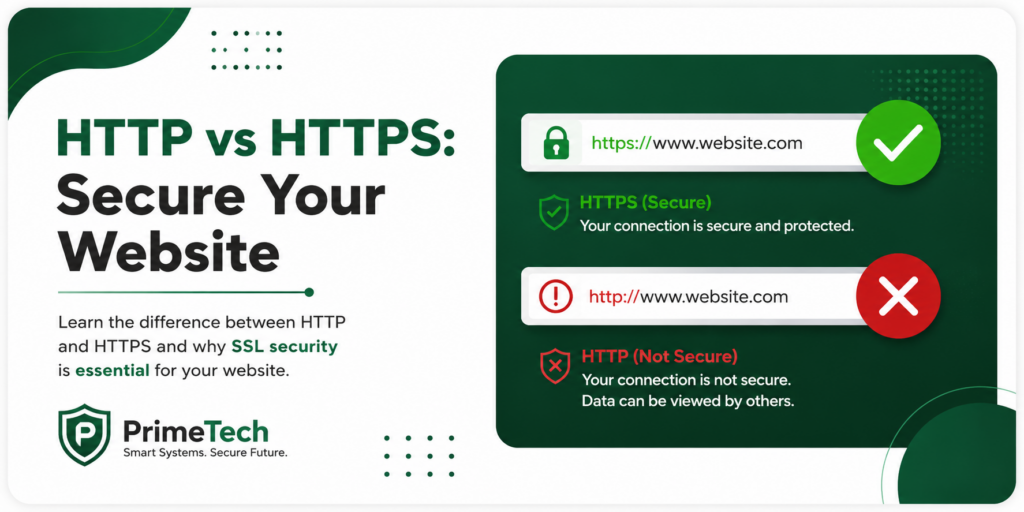
Go HTTPS from day one. A site without a valid SSL certificate throws a browser warning that scares visitors away and leaves submitted data unencrypted. When you run the installer, make sure it’s configured to use HTTPS rather than HTTP. If you’re hosting with PrimeTechnologies, their setup wizard defaults to a free SSL certificate, so this step is largely handled for you — but it’s still worth confirming before you go live.
Watch your install path. It’s surprisingly common for a fresh WordPress install to land in a subfolder (like yoursite.com/wordpress/) instead of the domain root. That produces messy URLs and is a hassle to fix later. Double-check the install directory before you start adding content.
2. Ignoring Permalink Settings
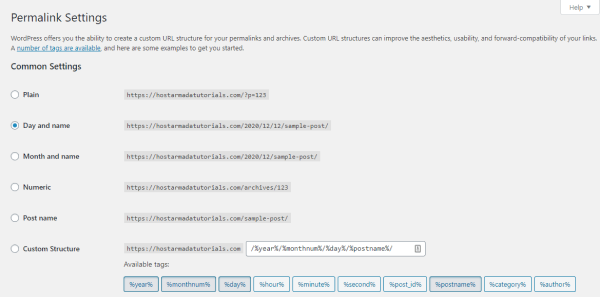
By default, WordPress structures your URLs around dates — something like yoursite.com/2026/07/28/my-post/. Switching to the “Post name” structure gives you cleaner, keyword-friendly URLs that are both easier to read and better for SEO.
The catch: change this setting after you’ve published content, and every existing link breaks, sending visitors to 404 pages. Set your permalink structure before you start building.
3. Skipping Backups
Mistakes happen — a bad plugin update, an accidental deletion, a failed migration. Without a recent backup, any of these can undo weeks of work in seconds.
Look for a host that backs up automatically rather than relying on you to remember. PrimeTechnologies runs daily backups to offsite storage at no extra cost, which means recovery is usually a support ticket away rather than a full rebuild.
4. Picking the Wrong Theme
It’s tempting to grab a free theme from an unfamiliar source to save money early on. The problem is that low-quality themes tend to cause plugin conflicts, sluggish load times, and a clunky user experience — issues that are far more expensive to fix later than a theme would have cost upfront.
Also avoid editing your theme’s files directly unless you’ve set up a child theme first. Direct edits get wiped out the moment the theme updates.

5. Plugin Overload
Plugins make it easy to bolt on new features, but they’re also one of the most common sources of site slowdowns, conflicts, and security holes — especially when they’re abandoned by their developers.
Install only what you genuinely need, and stick to plugins with a track record of regular updates and good reviews. A lean plugin list is easier to secure and far easier to troubleshoot.
6. Treating Security as an Afterthought
WordPress’s popularity makes it a constant target for automated attacks, and smaller sites aren’t exempt — in some ways they’re easier targets because they’re less hardened.
The basics go a long way: a valid SSL certificate, strong unique passwords, two-factor authentication, and a non-default admin login URL. Pairing that with a reputable security plugin covers most of the common attack vectors.
7. Building Live Instead of in Private
Half-finished pages and broken layouts don’t inspire confidence in visitors who stumble onto your site mid-build. A simple “Coming Soon” or maintenance-mode page keeps the work-in-progress hidden until you’re ready to launch, and there are several lightweight plugins built specifically for this.
8. Falling Behind on Updates
New WordPress releases patch security holes and improve performance — skipping them leaves known vulnerabilities open. The same goes for themes and plugins, which need to stay in sync with the core software to avoid compatibility issues.
Updating is usually a couple of clicks, but it’s worth testing on a staging copy first if your site is business-critical.
9. Uploading Oversized Images
WordPress will resize how an image displays on the page, but it won’t automatically compress the underlying file. That means you can end up serving a multi-megabyte image at a tiny display size — a common, avoidable cause of slow load times.
Resize and compress images before uploading. Free tools make this a quick step that pays off in faster page speeds.
10. Leaving the Door Open to Spam
Once a site’s been live for a while, spam comments and bogus form submissions are almost inevitable without some basic defenses.
Turn off automatic comment publishing and moderate submissions instead. For contact forms, add a CAPTCHA — it’s a small addition that blocks the vast majority of automated spam.
11. Never Checking Site Performance
Running a speed test once at launch and assuming performance stays constant is a common blind spot. Load times shift as you add content, plugins, and images, so periodic checks with tools like GTmetrix or Pingdom help catch regressions before visitors notice them.
If you’d rather not chase this yourself, some hosts — PrimeTechnologies included — offer hands-on performance tuning as part of their support, so a ticket can often resolve what would otherwise take hours of trial and error.
Final Thoughts
WordPress is forgiving enough that beginners can learn as they go, but avoiding these eleven mistakes upfront will save you real time and frustration. Get security, backups, and the basic settings right from the start, and the rest of the learning curve is much easier to manage.
FAQs
What’s the single biggest mistake WordPress beginners make? Launching without backups or basic security measures in place — both are cheap to set up early and expensive to fix after a problem occurs.
How many plugins is too many? There’s no fixed number. The real test is whether each plugin is essential and actively maintained — trim anything that fails either check.
Are free WordPress themes safe to use? Yes, provided they come from a trustworthy source like the official WordPress Theme Directory and receive regular updates.
How often should WordPress be updated? As soon as stable updates are available for the core, your theme, and your plugins — delaying updates mainly just extends your exposure to known vulnerabilities.